You spend hours editing a video, post it everywhere, and then watch half your potential viewers get stuck because they can't find your channel. The single link slot on Instagram, TikTok, and X is both the bottleneck and the opportunity — and most YouTubers waste it by pointing to their channel homepage and nothing else.
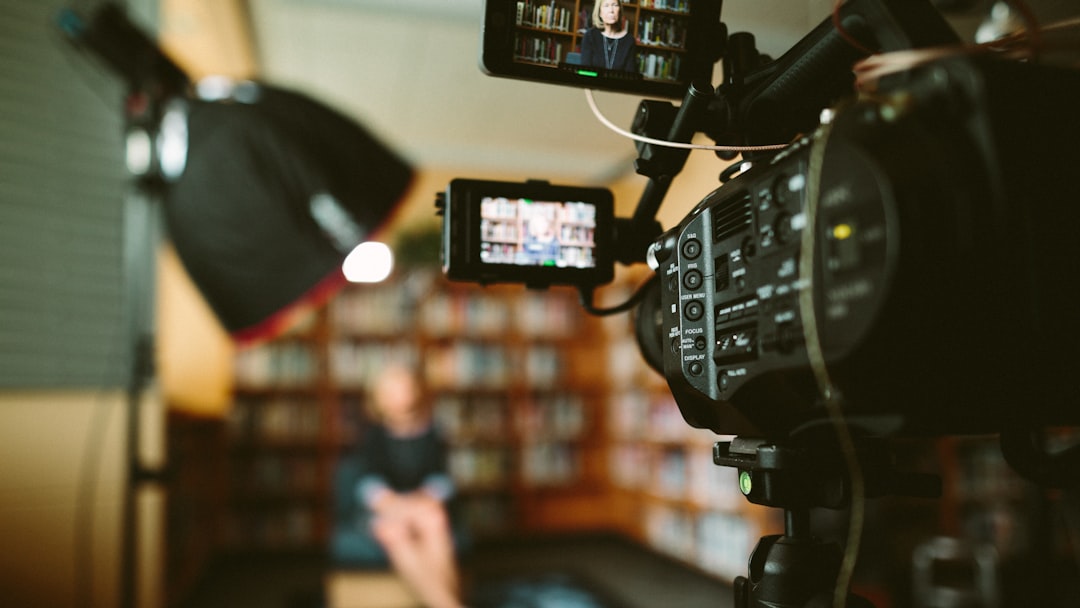
Cover photo by Sam McGhee on Unsplash.
Why YouTubers Need a Dedicated Link in Bio Page
Your YouTube channel link gets people to your homepage, but it doesn't tell them what to watch next, where to buy your merch, or how to join your community. A link in bio page is a mobile-first landing page you control completely. It loads in under two seconds, works on every device, and lets you swap links as often as you post — no bio update required on every platform.
The specific problems it solves for YouTubers:
- TikTok only allows one link in bio — your link-in-bio page holds all your destinations.
- Instagram Stories links expire or get buried; your bio link is always there.
- When you launch a new series or sponsor deal, you update one page instead of five bios.
- You can track which platform actually drives clicks to your merch or channel.
What to Put on Your Link in Bio for YouTubers
The order matters. People skim top-to-bottom on mobile, so put the most time-sensitive or highest-value item first. Here is a structure that works for most channels:
- Latest video — top position, with thumbnail. Embed or link your most recent upload with the thumbnail showing. A visual button with the video title converts significantly better than a plain text link. Update this every time you post.
- Channel subscribe button. A clear "Subscribe on YouTube" button below the latest video catches people who haven't subscribed yet. Keep the label direct — "Subscribe to my channel" beats "Check out my YouTube."
- Merch or digital products. If you sell merch, a course, presets, or templates, this belongs in the top three items. Use a product image if possible. Even a basic free plan on most platforms lets you add a linked button with a thumbnail.
- Sponsor or affiliate links (when active). If you have a sponsored product or an affiliate code, add it as a time-limited button. When the campaign ends, remove it — a dead promo link erodes trust.
- Other platforms and community links. Discord server, Patreon, newsletter signup, Instagram, TikTok. Keep this section below the fold so it doesn't compete with your primary CTA.
- Contact or booking link. For creators who do brand deals, a simple "Work with me" button that opens a contact form or email saves you from drowning in DMs.
Choosing the Right Link in Bio Tool as a YouTuber
The main options creators compare are Linktree, Beacons, Carrd, and Alllinks. Here is how they differ for a YouTube-focused setup:
- Linktree is the most recognized name. The free plan is very limited on design and analytics. You can add a YouTube link button, but the page looks generic unless you pay.
- Beacons is popular with TikTok creators and has an integrated store, but the interface has a learning curve and some features require a paid plan.
- Carrd is a full one-page site builder — flexible but overkill if you just need a clean links page, and it requires more setup time.
- Alllinks is built specifically as a link-in-bio page with image thumbnail buttons, an embedded products section, video display, a photo gallery, and click analytics on the free plan. The page loads fast on mobile, which matters when someone taps your bio link mid-scroll on TikTok.
For YouTubers, the most important features to look for are: thumbnail support for link buttons (so your latest video looks like a video, not a wall of text), a shop or products section if you sell anything, and click analytics so you know which platform is actually driving traffic.
How to Set Up Your Link in Bio Step by Step
This takes about twenty minutes to do properly:
- Step 1 — Sign up and pick a username that matches your YouTube channel handle. Consistency makes it easier for fans to find you.
- Step 2 — Upload a profile photo and write a one-line bio. Explain what your channel is about in a single sentence. "Weekly tech reviews for people who don't want to read manuals" is better than "Content creator."
- Step 3 — Add your latest video as the first button. Upload or link the thumbnail. The title should match the actual video title so viewers recognize it from your feed.
- Step 4 — Add a subscribe button. Link directly to your YouTube channel URL. Most platforms let you set a distinct button color — use red if your branding allows it; it signals YouTube immediately.
- Step 5 — Add merch, affiliate, or sponsor links below. Use product images wherever possible. A button with a thumbnail of your merch hoodie beats a plain text link every time.
- Step 6 — Add your other socials and Discord/Patreon at the bottom.
- Step 7 — Update your bio on every platform with the same link. TikTok, Instagram, X, Threads, YouTube's own "about" section, and your video descriptions.
Keeping Your Link in Bio Page Current
A stale page hurts your credibility. If someone taps your bio link and sees a sponsor campaign from four months ago as the top item, they assume you're inactive. Build a weekly habit: every time you publish a video, log in and update the top link. It takes two minutes.
For channels that post less frequently — weekly or biweekly — consider pinning your most evergreen content at the top (a playlist, a best-of compilation) rather than your latest upload, and keep the latest video as the second item. This way a viewer landing on your page for the first time always sees the best entry point for your channel, not just the most recent one.
If you run multiple channels or manage a collab channel, use a section title divider to group the links by channel. Most link-in-bio tools support section labels — use them so the page stays scannable as it grows.
Start Your Link in Bio on Alllinks
If you want a clean, fast page with thumbnail buttons, a products section, and analytics without immediately paying for a plan, create your free Alllinks page and have it live in under fifteen minutes. You can add your latest video with a thumbnail, a subscribe button, your merch links, and your other socials — all on one mobile-optimized page that you update from anywhere. The free plan covers the essentials; upgrading adds a custom domain and advanced analytics when you're ready to scale.
